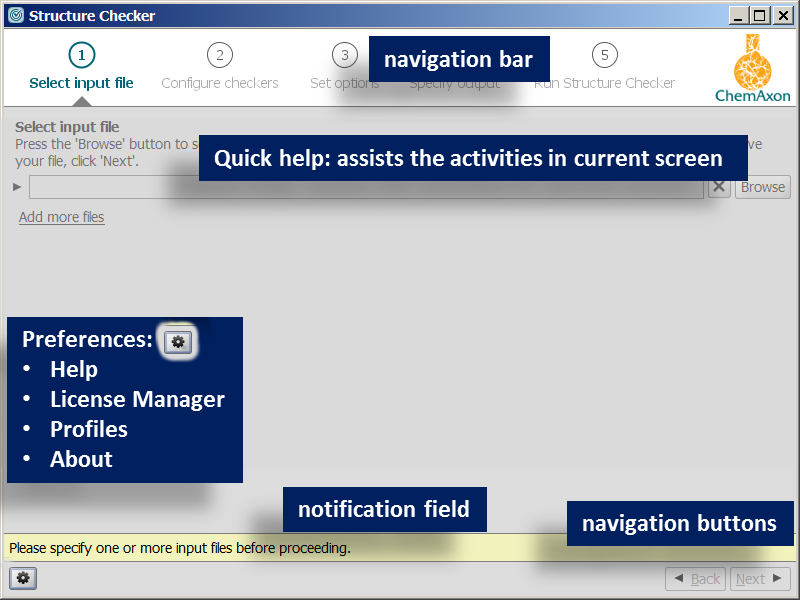
Structure Checker is a chemical validation tool detecting and fixing common structural errors or special features that can be potential sources of problems. Structure Checker wizard is a desktop application for the batch checking and fixing structures of input file(s). Your large files (like SDfiles) are scanned for drawing errors or features you want or don't want to include in the output file. This application offers manual operation mode displaying the compounds having errors and allowing the manual modification. Additionally, automatic fixers are provided for many types of issues, and a validation report can be generated as well. For the more comfortable usage of Structure Checker, "Profile manager" is available to customize every step of the wizard.
See the detailed list of available checkers.
General layout
This chapter gives you a simple walkthrough of the usage of Structure Checker application. The major steps are demonstrated on the screenshots of every page of the checking routine.
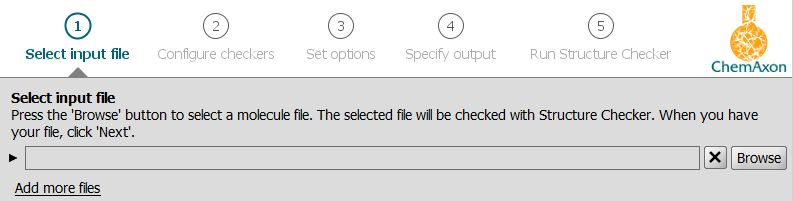
In this step you define the files to be checked and fixed. Click on the Browse button on the right side to add files one by one; click on Add more files to add further files or multiple files at a time. Select one or more files (Shift or Ctrl + mouse click) and click Open. You can add unlimited number of files but remember, the output will be written to only one file.
To remove a file from the list, click on
 button in line
with file.
button in line
with file.
Click Next to proceed to the next step.
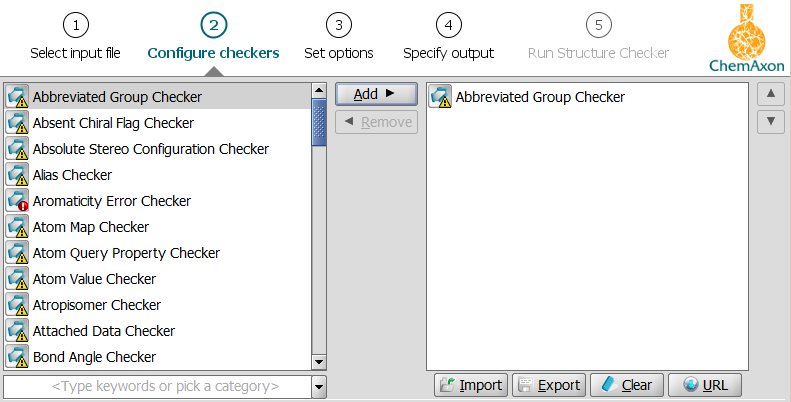
In this screen you can see two panels. On the left, all available checkers are listed in alphabetical order. For creating your checklist, select the actions you want to perform and click the Add button to transfer it to your checklist, i.e., into the right panel.
Removal of any element from the list is similarly easy: click the item(s) in the right panel first, then the Remove button between the two panels. Click on Clear at the bottom of right panel if you want to remove all elements from the list.
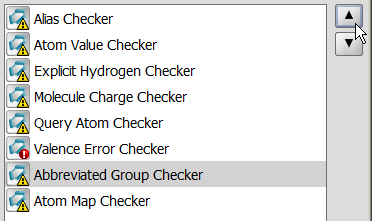
You can create an ordered list of checkers by moving the selected item(s) with the up or down arrow next to the right panel.

If you'd like to use the set checking configuration later, you can export it to a configuration file by clicking the Export button. Browse the location and name the file in the Save dialog window.
If you want to remove all elements from the checklist, click on Clear at the bottom of right panel.
To load a configuration file located on your computer, click the Import button. Browse the location in the Open dialog window and click Open.
To load a configuration file from an internet source, click the URL button. Enter the URL in the Input dialog window and click OK.
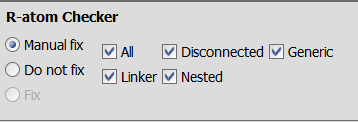
Some checkers have options to refine the issue detection. These options appear when you click on the checker in the right panel of the configuration page.
Fixer can also be configured for each checker, i.e., what to do when an issue is found. Apart from Manual fix and keeping the compounds unfixed, Do not fix, one or more automatic fixers are also available as Fix option.
Click Next to proceed.
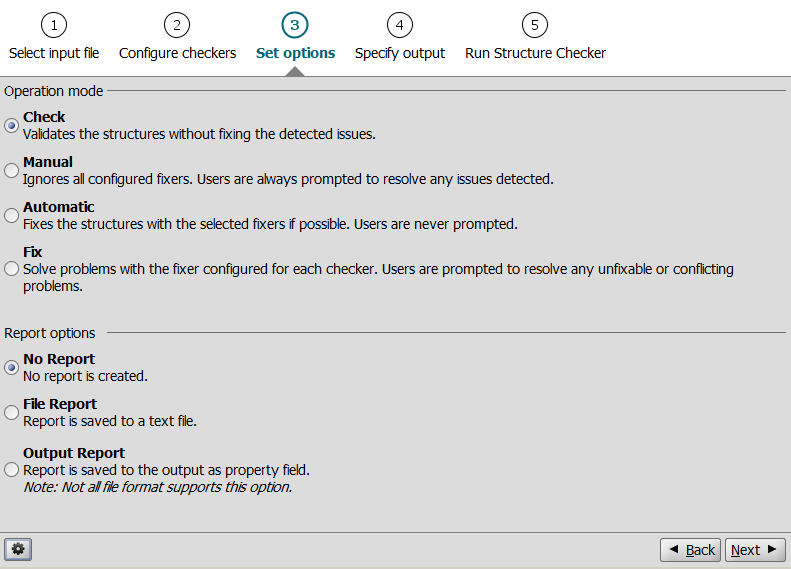
Operation mode
Report options
Each error and issue is recorded in the report logged during the checking and fixing procedure.
txt or csv format containing statistics
and a detailed list of detected problems.
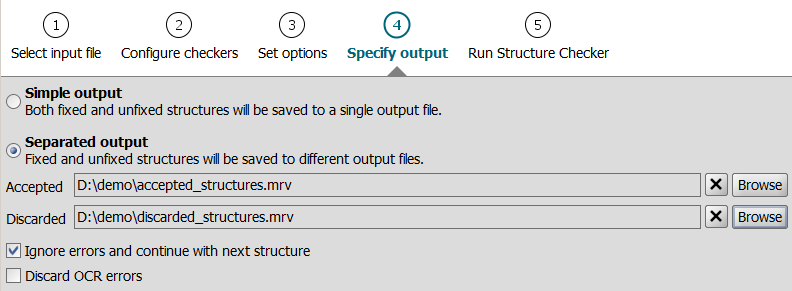
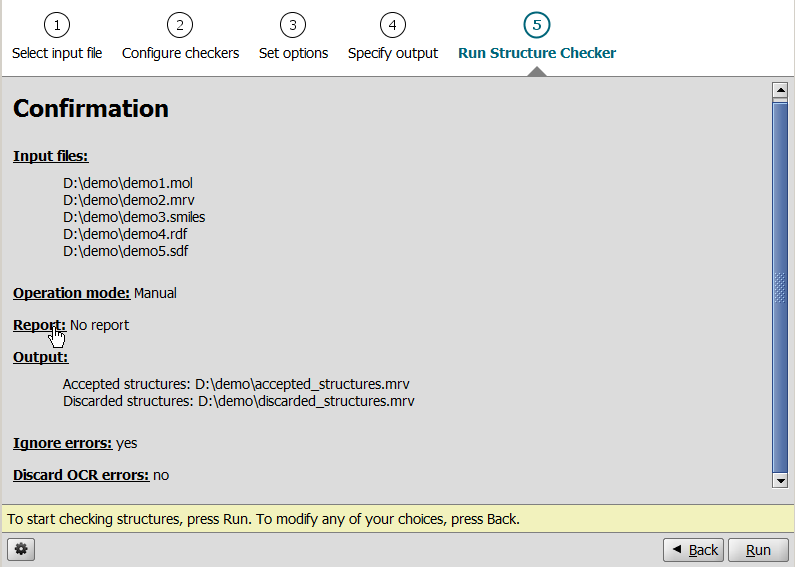
In this page, you can see the confirmation of input and output files, operation mode, and report options before starting the checking/fixing process. To change any of these settings:
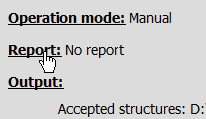
To perform structure check, click Run.
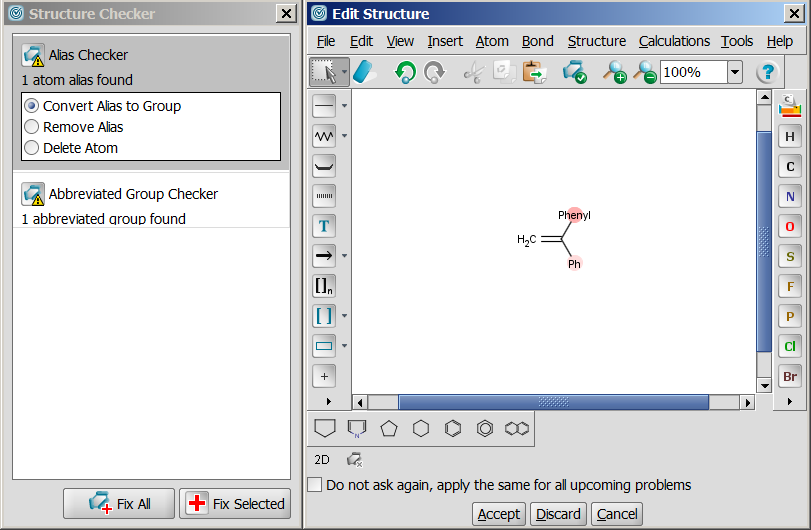
If you have chosen a mode which prompts you to fix manually the structures, a MarvinSketch window is displayed with the incorrect structure, and the Structure Checker side window shows you the source of the issues. Choose the fixing method by clicking on the checker, select the mode of fixing if applicable, and click Fix selected. After fixing the molecule, click on Accept button to accept the changes, or Discard, if you want to save the molecule with errors.

According to previously set checking procedure, Summary window displays the checking and fixing results in different tabs.
 or
or


You can reach the following actions via Preferences button:
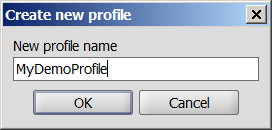
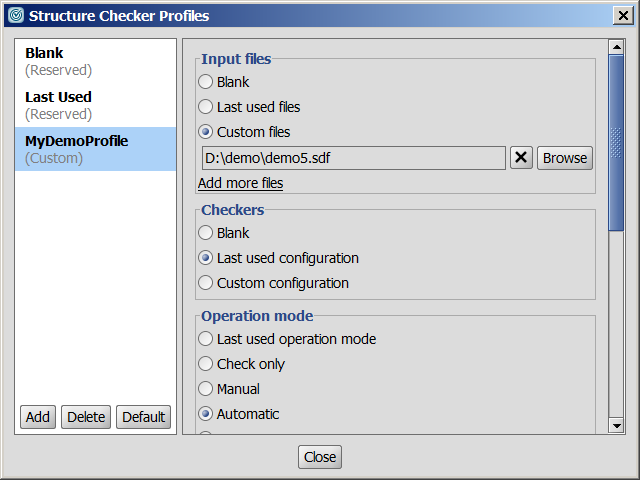
Using profiles, the checking routine can be simpler and easier. Besides the two read-only profiles, "Blank" and "Last Used", custom profiles are also available to set and use.
You can add, set custom profiles, and select the default one (used at start-up) by clicking on the Preferences button > Profile...> Edit Profiles... Unless default profile is selected, Blank profile is loaded at start-up.
| List of available checkers |
 Structure Checker in MarvinSketch Structure Checker in MarvinSketch |
 structurechecker Command Line Tool |
| Examples of structure checking in various ChemAxon products |
| Structure Checker Developer Guide |